
Compatible pins
Inspect without changing your graph
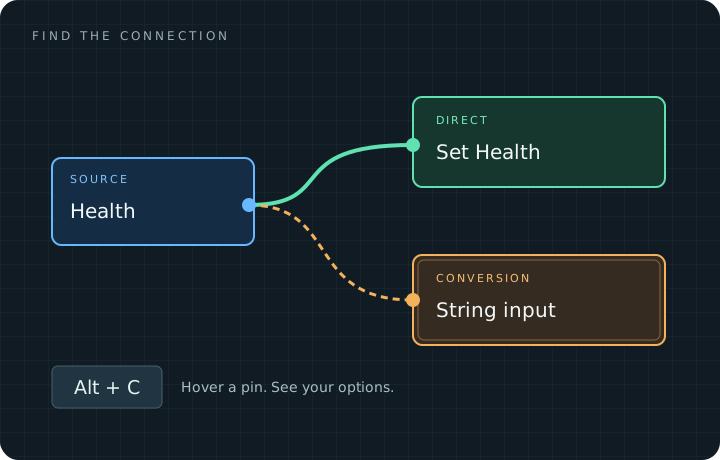
Section titled “Inspect without changing your graph”Hover a pin and press Alt+C, or right-click the pin and choose Highlight Compatible Pins. The assistant uses Unreal’s Blueprint schema to evaluate other pins in the same graph.
Read the result
Section titled “Read the result”- Direct / green: Unreal permits a direct connection. It may still need to replace an existing connection.
- Conversion / orange double outline: Unreal requires conversion or type promotion.
- No highlight: the pin is not a visible compatible target in this inspection.
A highlighted node contains at least one compatible pin. Its other pins may be incompatible. Selected, hovered, and compiler-message nodes are protected from some dimming behavior so they remain readable.
Highlight while dragging
Section titled “Highlight while dragging”Start a normal wire drag to see compatible targets automatically. Drop onto the intended pin to let Unreal perform the connection. If you drop into empty space, Unreal’s node search may keep the drag preview active; close it with Escape.
Navigate the results
Section titled “Navigate the results”Use Alt+Left / Alt+Right, the panel’s Previous/Next controls, or the context menu’s Go to Compatible Pin. Alt+Home focuses the original source.
Hidden and orphaned pins are not visually highlighted. An advanced pin can be in a collapsed node section: navigation focuses the node but does not expand that section.
Clear the inspection
Section titled “Clear the inspection”Press Alt+X, use Clear Highlights / Trace, or press Alt+C over the original source. Compilation, graph edits, Undo/Redo, and preference changes invalidate the inspection; start a new one afterwards.